
One Photo, Endless Possibilities: How Background Removal Transforms Portrait Images
Mar
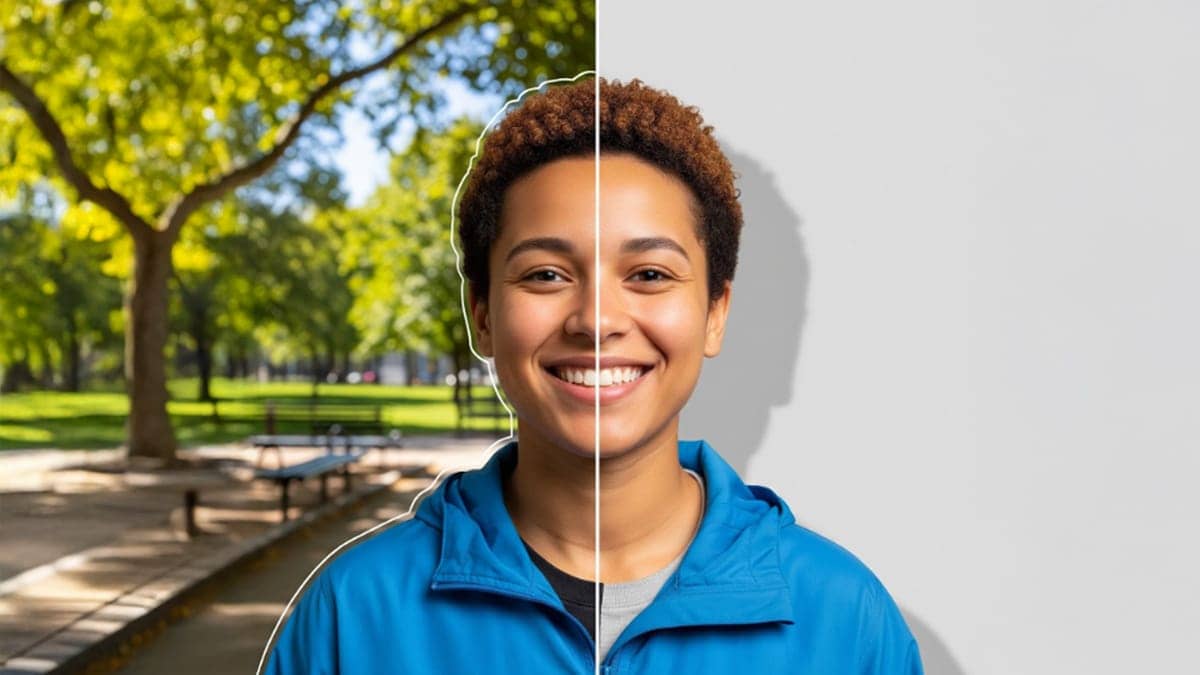
You’ve snapped the perfect portrait, but the background is a problem. A messy room or distracting street sign can ruin a great shot. Instead of reshooting, you can remove the background to rescue the photo and open up new creative possibilities.
Getting rid of the backdrop gives you control over your visual story, letting you place your subject in a new setting or against a clean, solid color. In this guide, we’ll explore why this editing trick is so powerful and show you the best tools for the job.
Why You Should Remove Background From Image Files
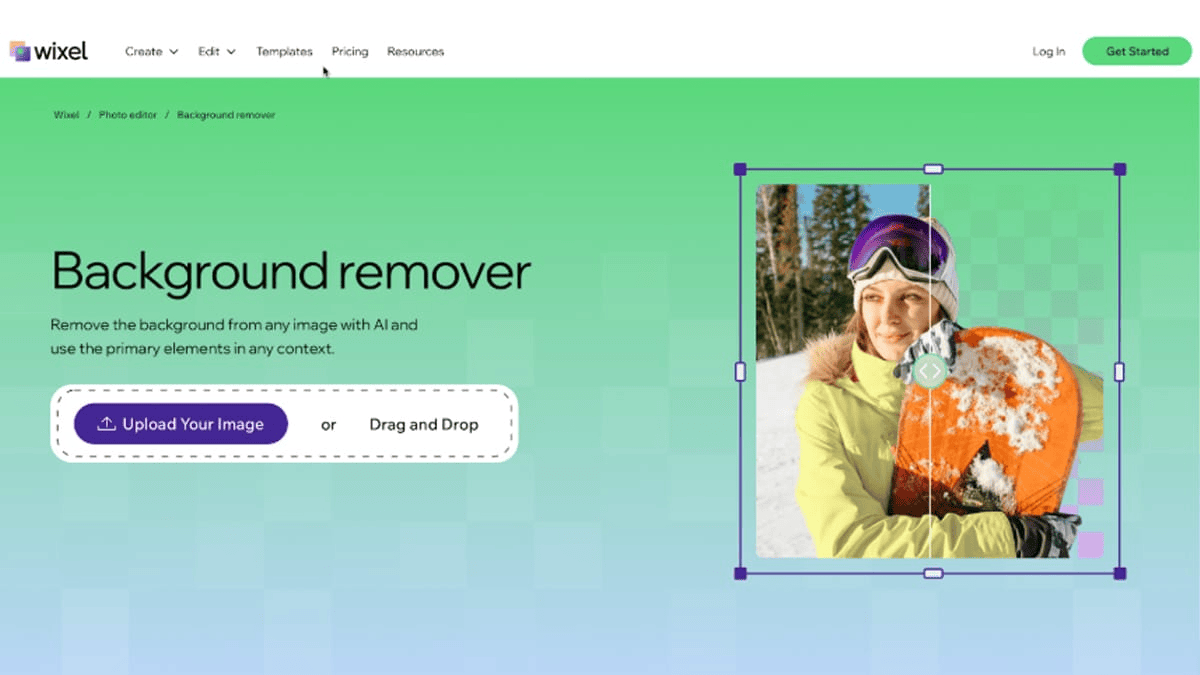
Getting rid of a distracting backdrop completely changes how people see your photo. When you remove background from image, you take away everything competing for the viewer’s attention. Wixel by Wix is a great AI tool that makes this easy. Suddenly, the focus is exactly where it belongs: on the person in the frame. This simple edit turns an average snapshot into a versatile asset you can use anywhere.
Think about a standard headshot taken in a busy office. The phones, monitors, and passing coworkers in the background make the photo feel chaotic. By erasing that clutter, you bring a sense of calm and professionalism to the image. The subject looks more authoritative, and the image feels intentional rather than accidental.
Build a Consistent Brand Identity
If you run a business or manage a team, consistency is crucial. When your team members supply their own photos for the company “About Us” page, you usually end up with a messy mix of styles. One person is standing in their garden, another is sitting in their car, and a third is at the beach. This mismatched collection looks unprofessional.
Erasing the backgrounds solves this problem instantly. You can extract every person from their original photo and place them all on the exact same background color. This creates a cohesive, unified look for your entire team. Visitors to your site will immediately notice the clean, organized presentation.
This approach works wonders for personal branding, too. You can use your signature brand colors as the backdrop for all your profile pictures across different social platforms. When people see that consistent color and style, they instantly recognize you. It builds trust and makes your brand much more memorable.
Creative Applications for Portrait Cutouts
Once you separate your subject from the background, the creative possibilities are truly endless. You are no longer bound by reality. You can transport your subject anywhere or use them as a design element in larger projects.
Design Eye-catching YouTube Thumbnails
Scroll through YouTube, and you will notice a trend: the most popular videos feature striking thumbnails. Creators often use bold, cut-out portraits of themselves reacting to the video’s topic. By erasing the original background, they can add massive text, bright colors, and bold outlines around their silhouette. This technique grabs attention and drives clicks much better than a standard screenshot.
Create Engaging Social Media Graphics
Social media feeds are fast-paced, and you need graphics that pop to stop the scroll. Cut-out portraits are one of the best art marketing tips for creating dynamic Instagram carousels or eye-catching Pinterest pins. Layer the subject over interesting textures, place text behind them, or create unique overlapping effects. This simple trick will make your graphics look polished and professional.

Background removal is not just for business. It is fantastic for personal projects, too. You can cut out a great photo of your dog or your kids and use it to design custom greeting cards, mugs, or calendars. Removing the messy background makes the final printed product look much cleaner and more intentional.
The Best Tools for the Job
In the past, erasing a background meant spending hours carefully clicking around a subject with the Pen Tool in Photoshop. It was a tedious, frustrating process that required serious patience. Thankfully, modern tools have completely changed the game.
Today, artificial intelligence does the heavy lifting for you. Many popular photo editing platforms and website builders now include built-in, one-click background removal features. These smart tools analyze your photo, detect the edges of your subject, and erase the rest in seconds. You get professional-level results without needing a degree in graphic design.
Dedicated apps and web-based tools also offer fine-tuning options. If the AI misses a stray hair or cuts off a piece of a shirt, you can quickly restore it with a brush tool. Whether you are editing on a powerful desktop computer or tapping away on your phone during your commute, there is an accessible tool ready to help.
(Also Read: AI Platforms for AI Restoration)
Actionable Tips for Professional Results
While modern tools are incredibly smart, the quality of your original photo still matters. Giving the software a good starting point ensures you get a clean, crisp cutout every single time. Here are a few ways to set yourself up for success.
Start with Good Lighting
Harsh shadows make it difficult for AI to figure out where your subject ends and the background begins. When taking a portrait, try to use soft, even lighting. Face a window for natural light, or use a ring light. Well-lit subjects with clear edges are much easier to cut out cleanly.
Look for Contrast
If your subject is wearing a white shirt and standing against a white wall, the software will struggle to find the boundary between the two. Try to shoot against a background that contrasts with the subject’s clothing and hair color. A dark shirt against a light wall, or vice versa, gives the AI the clear definition it needs.
Mind the Hair
Hair is notoriously tricky to cut out, especially if it is curly or blowing in the wind. To make the process smoother, make sure the hair is well-lit and contrasts with the background. If you know you are going to remove the background later, try to avoid shooting against complex patterns or trees, as the leaves can easily blend into the subject’s hair.
(Suggested: Portrait Background Ideas)
Take Control of Your Photos Today
You do not have to settle for photos that are just “okay.” With a few clicks, you can strip away the noise and bring focus back to the people in your portraits. This simple technique opens up a world of creative flexibility, allowing you to design cohesive team pages, bold social graphics, and professional marketing materials.
Stop letting bad backgrounds ruin great shots. Try out a background removal tool today. Upload your favorite portrait, click the button, and watch the magic happen. You will be amazed at how quickly you can transform a simple picture into art/ a powerful visual asset.
FAQs
1. What is a background removal tool?
A background removal tool is software or an online platform designed to erase the background of an image, leaving the subject in focus. It’s a fast and easy way to create professional-looking visuals without needing advanced editing skills.
2. Do I need design experience to use it?
No, background removal tools are typically user-friendly and require no prior design experience. Most tools work with just a few clicks, making them accessible to everyone.
3. What types of images work best?
Portraits or images with a clear subject work best for background removal. The tool works most effectively when the subject is distinct from the background.
4. Can I use it for commercial purposes?
Yes, in most cases you can use background-removed images for marketing materials, social media graphics, and other commercial needs. However, always check the terms and conditions of the tool you’re using.
5. Is it free to use?
Many tools offer free options, but some advanced features or high-resolution downloads may require a subscription or one-time payment. Be sure to explore the tool’s pricing structure to find what works for you!
